Posts

OMF Tablespace in 19c database

Image
Oracle Managed Files (OMF) handles file creation and deletion directly at the operating system level.  Sample we only need to specify that you want to create a tablespace; you do not need to specify the name and path of the tablespace's data file with the DATAFILE clause. This feature works well with a logical volume manager (LVM). Below installation parameters are must enable the   OMF.   DB_CREATE_FILE_DEST   Defines the locations of the default file system directory for the datafiles and temporary files. SQL> show parameter DB_CREATE_FILE_DEST   NAME                                  TYPE         VALUE ------------------------------------------------------------------------------- db_create_file_dest     ...

Oracle E-Business Suite (R12.2) Installation

Image
This post is a step-by-step for Installing Oracle E-business suite R12.2.0 on Oracle Enterprise Linux 7.5 (64-bit). Pre-Installation Tasks Software Requirement ·        Oracle Virtual Box ·        Oracle Enterprise Linux 7.5 (64-bit) ·        Oracle E-Business suite R12.2 for LinuxX86-64-bit High Level Installation Steps ·        Hardware requirements. ·        Operating System pre-requisites. ·        Prepare Stage Area. ·        Install Oracle EBS R12.2 software. ·        Verify Installation Download the Oracle E-Business Suite Software Download the software from  http://edelivery.oracle.com . It comes in zip format.   NETWORKING Please add the below format foe the /etc/host file <IP address>  <hostname>.<domainname>...

How to Change Weblogic User Password

Image
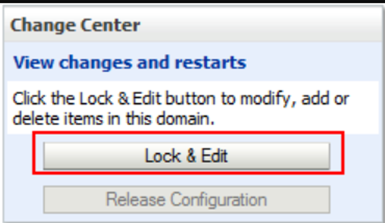
The weblogic admin user's password may need to be changed in accordance with our Origination security rule in frequently. Below steps can be used to change the weblogic admin password. Step 1: Login to oracle Weblogic server http://<server>.<domain>:<weblogic_admin_port>/console Step 2: Choose the Lock and Edit button. Step 3: Go to Security Realms -> myrealm -> User and Groups -> Weblogic Step 4: Select the Users and Groups tab and choose the ‘weblogic’ link. Step 5: Select the Passwords tab and enter the new password. Step 6: Choose the Save button. Step 7: We need to manually change the password in boot.properties (for all components) file located in below location: [applmgr@weblogiclab ~]$ locate boot.properties /apps/applmgr/12.1.0.2/product/12.1.0/client_1/dmu/ide/macros/ide-boot.properties /apps/applmgr/12.1.0.2/product/12.1.0/client_1/sqldeveloper/ide/macros/ide-boot.properties /apps/applmgr/weblogic1212/user_projects/domains/grcc_domain/servers/A...

How to enable trace in User level in R12.2

Image
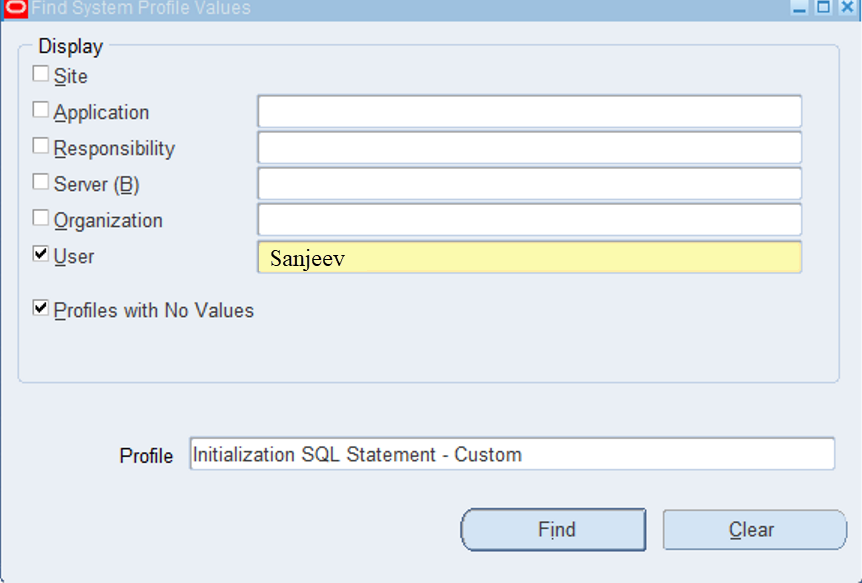
Step 1: Go to system administrator à Profile à system Enter username and Profile Option “ Initialization SQL Statement – Custom ” and search Step 2: Just replace the User for below command and paste the command   Begin fnd_ctl.fnd_sess_ctl('','','TRUE','TRUE','LOG','ALTER SESSION SET TRACEFILE_IDENTIFIER='||'''' ||<Username>|| ''''||' EVENTS='||''''||'10046 TRACE NAME CONTEXT FOREVER, LEVEL 12'||'''');End;   Example: Begin fnd_ctl.fnd_sess_ctl('','','TRUE','TRUE','LOG','ALTER SESSION SET TRACEFILE_IDENTIFIER='||''''|| Sanjeev ||''''||' EVENTS='||''''||'10046 TRACE NAME CONTEXT FOREVER, LEVEL 12'||'''');End; Trace File Location: set line 1000 SQL> select * from v$diag_info;